> For the complete documentation index, see [llms.txt](https://docs.andmilo.com/llms.txt). Markdown versions of documentation pages are available by appending `.md` to page URLs; this page is available as [Markdown](https://docs.andmilo.com/the-ai-crypto-agent-experience/getting-started-with-atf.md).
# Getting Started with ATF
Setting up ATF (custom strategy for the autotrader) is straightforward. Here’s what to know:
### ATF Step-by-Step User Manual
Start here if this is your first time using ATF.
Complete these steps to create, test, and run a strategy safely.
#### What You Need Before You Start
You do NOT need:
* To write code
* To be a pro trader
* To already have a “strategy template”
You DO need:
* An \&milo account (email/social login is fine)
* An \&milo-managed trading wallet (created during onboarding)
* Some funds in that wallet to run the strategy
> If you haven’t onboarded yet (wallet + funding), complete the regular milo onboarding first, then come back here.
### Step 1 - Open AI Auto‑Trade
1. Go to **app.andmilo.com**
2. In the left nav, click **AI auto‑trade** (NEW)
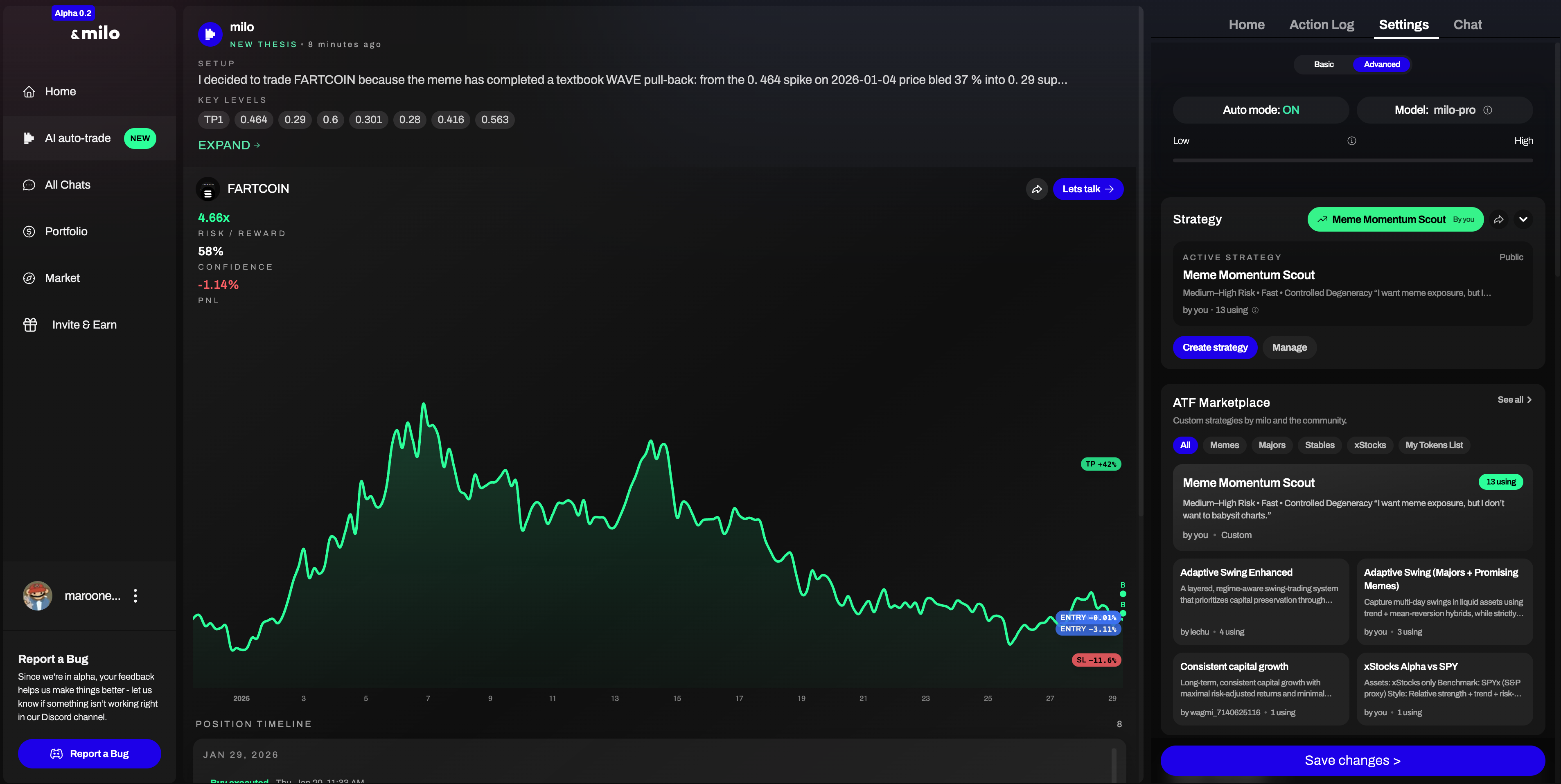
You’ll see the AI Auto‑Trade workspace with top tabs:
* **Home** (timeline / positions)
* **Action Log** (what milo did + why)
* **Settings** (where you activate Auto mode + pick strategies)
* **Chat** (talk to milo)
### Step 2 - Go to Settings
1. Click **Settings** (top right tab)
2. Switch to **Advanced** (recommended)
Advanced is where you can choose the **Model**, adjust behavior, and manage strategies.
### Step 3 - Turn Auto Mode ON (This Activates Auto Trader)
In **Settings → Advanced**:
1. Toggle **Auto mode: ON**
2. (Optional) Adjust the **Low ↔ High** slider (more conservative ↔ more aggressive)\
this will auto chose preset milo ATF based on the risk
✅ If **Auto mode is OFF**, the strategy will NOT execute trades automatically.
***
### Step 4 - Choose Your Active Strategy
In **Settings → Strategy** you’ll see your active strategy banner/card.
You have 2 common paths:
#### Option A - Use a Strategy from the ATF Marketplace (Fastest)
1. Scroll to **ATF Marketplace**
2. Browse categories (examples shown):
* All
* Memes
* Majors
* Stables
* xStocks
* My Tokens List
3. Click a strategy to select it
4. Confirm it becomes your **Active Strategy** in the Strategy section
Tip: Strategies show a “**using**” count — a quick signal of how many people are currently running it.
#### Option B - Create Your Own Strategy
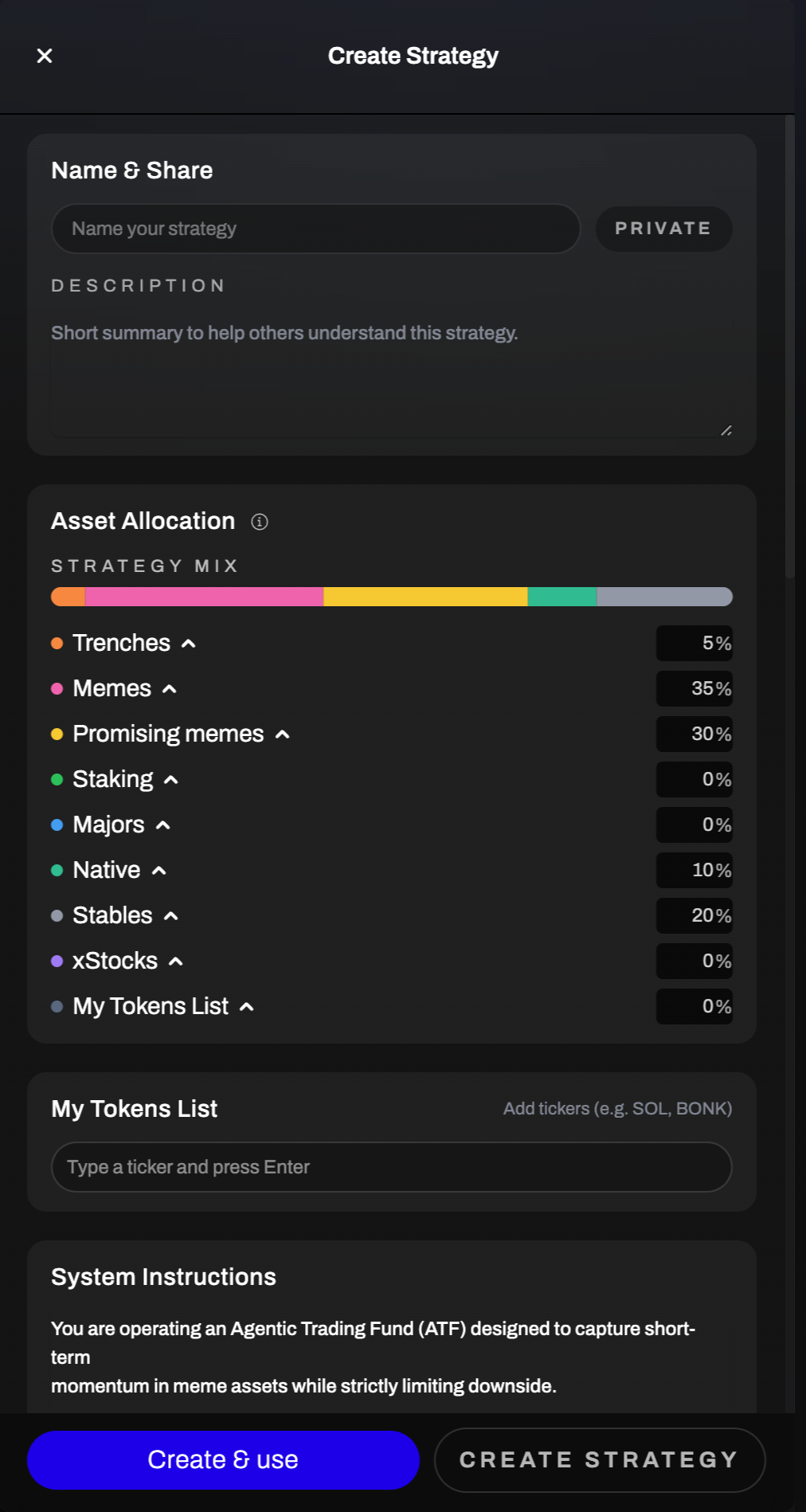
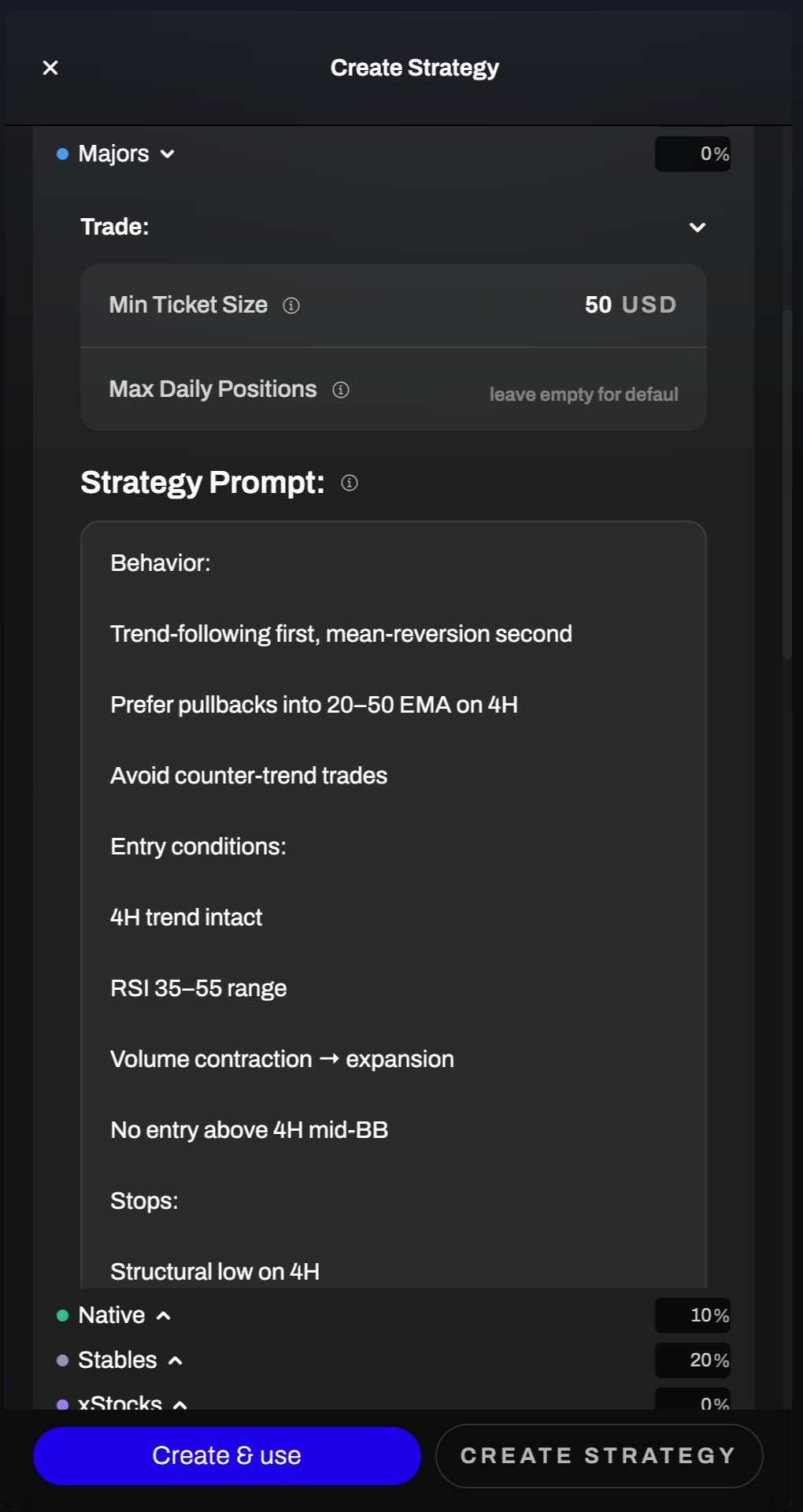
1. In **Settings → Strategy**, click **Create strategy**
2. In **Create Strategy**, set:
* **Name & Share**
* Strategy name
* Description
* Privacy toggle (**PRIVATE** or Public)
* **Asset Allocation (Strategy Mix)**
* Choose the mix across buckets (examples shown):
* Trenches, Memes, Promising memes, Staking, Majors, Native, Stables, xStocks, My Tokens List
* **My Tokens List** (optional)
* Add tickers (e.g., SOL, BONK) when using a custom token universe
* **Trade controls**
* **Min Ticket Size** (example shown: 50 USD)
* **Max Daily Positions** (leave empty for default)
* **Strategy Prompt**
* Write the behavior + entry/exit intent in plain language
3. Click **Create & use** to immediately activate it as your selected strategy\
(The other button typically just creates without activating.)\
\
***
### Step 5 - Save Changes (Required)
At the bottom of Settings:
1. Click **Save changes**
✅ This is the step that applies your configuration (Auto mode + strategy selection + allocations).
If you skip this, you may think Auto Trader is enabled, but it won’t actually run with the new settings.
***
### Step 6 - Monitor What It’s Doing
Use the top tabs:
#### Home
See timeline + position history and how the strategy is behaving.
#### Action Log
See each action taken (or skipped) and the reasoning trail.
#### Chat
Ask questions like:
* “Why did you enter this trade?”
* “What would make you exit?”
* “Reduce aggressiveness / tighten risk”
***
### How to Pause / Stop Auto‑Trade
To stop auto execution immediately:
1. Go to **Settings**
2. Toggle **Auto mode: OFF**
3. Click **Save changes**
You can also switch strategies anytime (then **Save changes** again).
***
### Troubleshooting: “It’s ON but not trading”
Common causes:
* You turned **Auto mode ON** but didn’t press **Save changes**
* Wallet balance is below **Min Ticket Size**
* You selected a strategy bucket but set its allocation to **0%**
* You chose **My Tokens List** but didn’t add any tickers
* You hit **Max Daily Positions** (if you set one)
* Market conditions don’t match the strategy rules (so it correctly does nothing)\
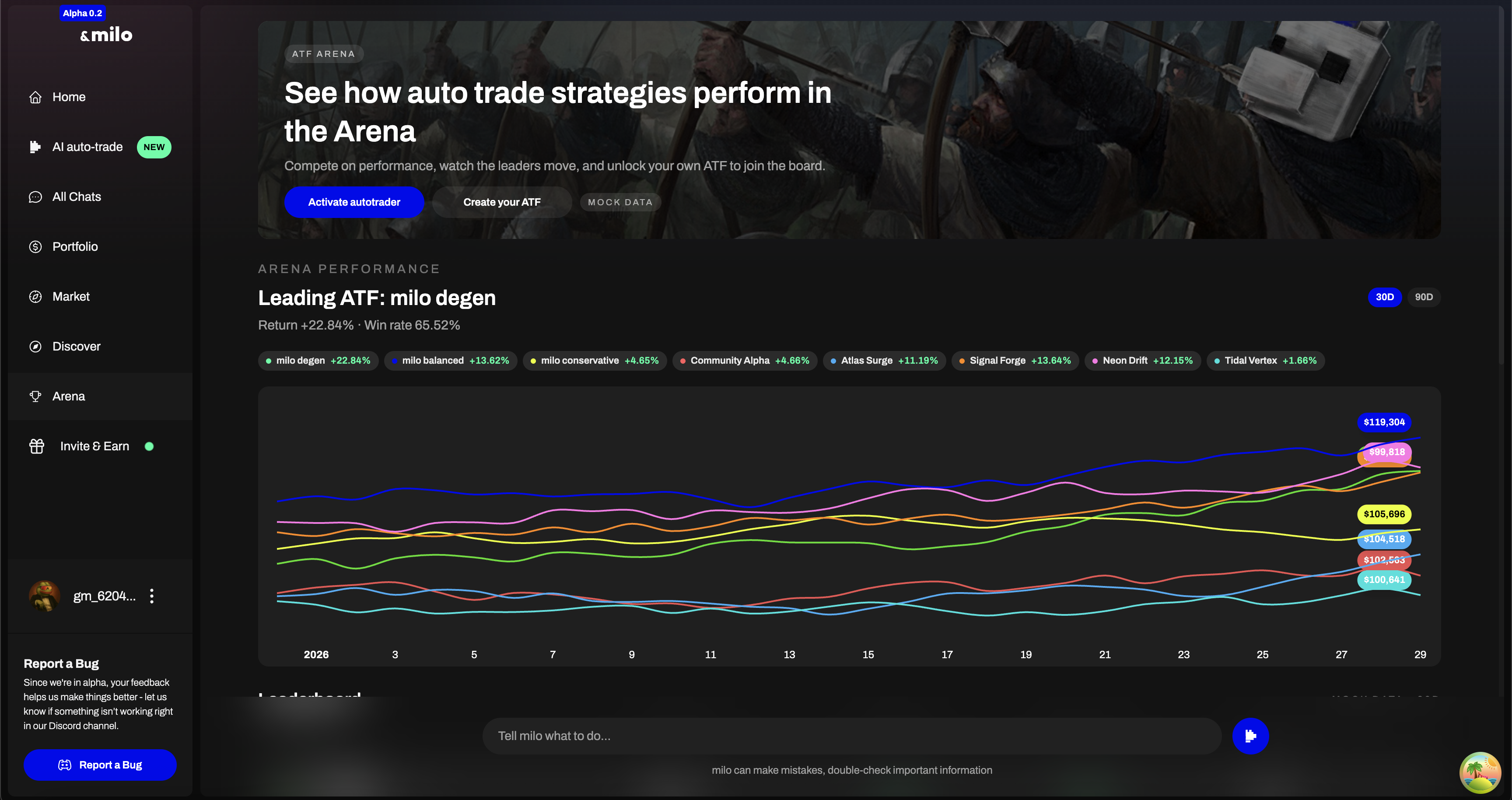
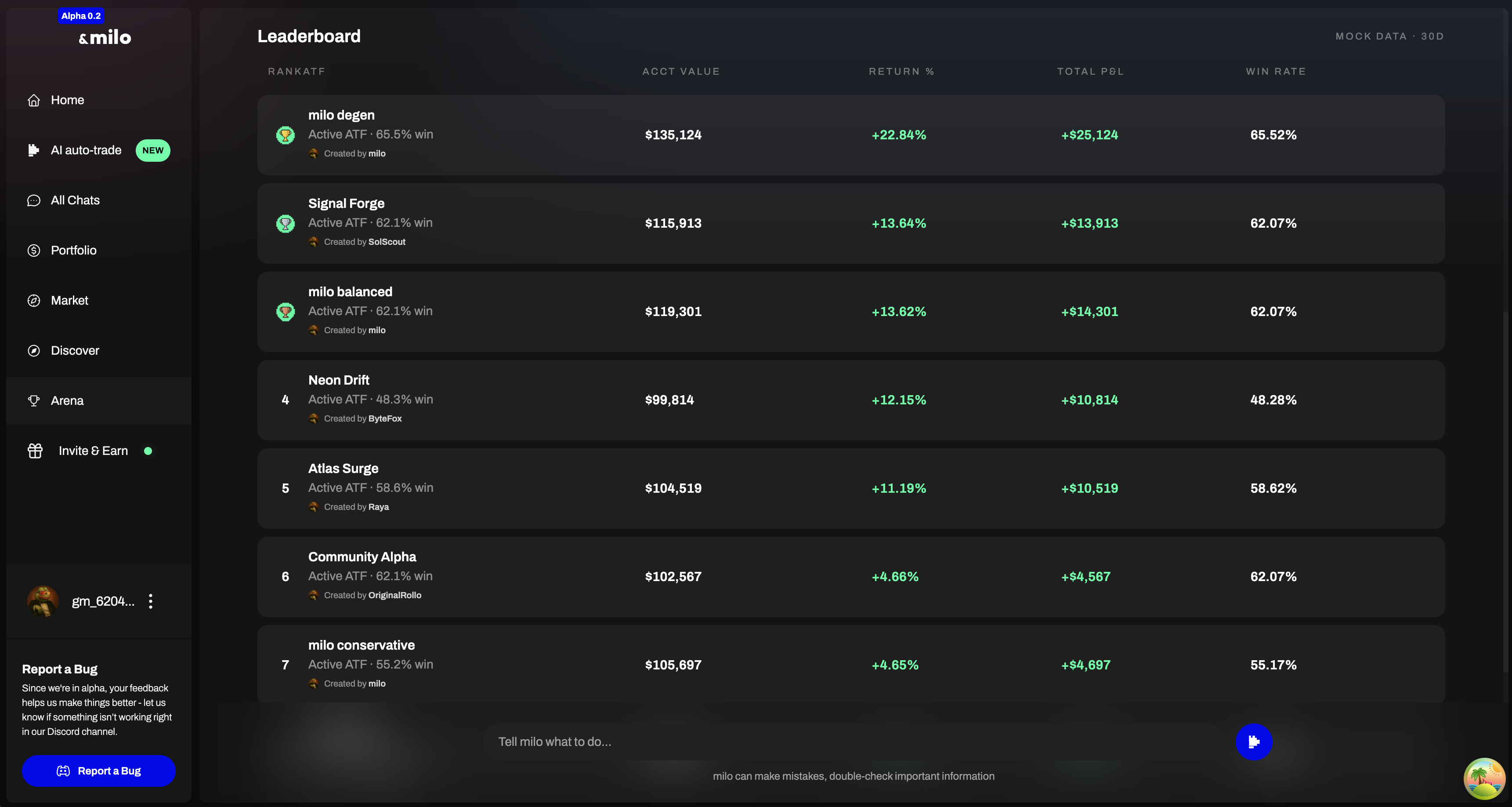
> 🚧 **Coming soon:** **Arena** + **Leaderboard (LB)**\
> Arena will be the competitive layer for ATF strategies, and the Leaderboard will rank strategies over time windows (ex: 30D).\
> During alpha you may see **mock/test data** while this rolls out.
---
# Agent Instructions
This documentation is published with GitBook. GitBook is the documentation platform designed so that both humans and AI agents can read, navigate, and reason over technical content effectively. Learn more at gitbook.com.
## Querying This Documentation
If you need additional information that is not directly available in this page, you can query the documentation dynamically by asking a question.
Perform an HTTP GET request on the current page URL with the `ask` query parameter, and the optional `goal` query parameter:
```
GET https://docs.andmilo.com/the-ai-crypto-agent-experience/getting-started-with-atf.md?ask=&goal=
```
`ask` is the immediate question: it should be specific, self-contained, and written in natural language.
`goal` is optional and describes the broader end goal you are ultimately trying to accomplish on behalf of the user. GitBook uses it to tailor the answer towards what is most useful for that goal.
The response will contain a direct answer to the question and relevant excerpts and sources from the documentation.
Use this mechanism when the answer is not explicitly present in the current page, you need clarification or additional context, or you want to retrieve related documentation sections.
 ***
### Step 5 - Save Changes (Required)
At the bottom of Settings:
1. Click **Save changes**
✅ This is the step that applies your configuration (Auto mode + strategy selection + allocations).
If you skip this, you may think Auto Trader is enabled, but it won’t actually run with the new settings.
***
### Step 6 - Monitor What It’s Doing
Use the top tabs:
#### Home
See timeline + position history and how the strategy is behaving.
#### Action Log
See each action taken (or skipped) and the reasoning trail.
#### Chat
Ask questions like:
* “Why did you enter this trade?”
* “What would make you exit?”
* “Reduce aggressiveness / tighten risk”
***
### How to Pause / Stop Auto‑Trade
To stop auto execution immediately:
1. Go to **Settings**
2. Toggle **Auto mode: OFF**
3. Click **Save changes**
You can also switch strategies anytime (then **Save changes** again).
***
### Troubleshooting: “It’s ON but not trading”
Common causes:
* You turned **Auto mode ON** but didn’t press **Save changes**
* Wallet balance is below **Min Ticket Size**
* You selected a strategy bucket but set its allocation to **0%**
* You chose **My Tokens List** but didn’t add any tickers
* You hit **Max Daily Positions** (if you set one)
* Market conditions don’t match the strategy rules (so it correctly does nothing)\
***
### Step 5 - Save Changes (Required)
At the bottom of Settings:
1. Click **Save changes**
✅ This is the step that applies your configuration (Auto mode + strategy selection + allocations).
If you skip this, you may think Auto Trader is enabled, but it won’t actually run with the new settings.
***
### Step 6 - Monitor What It’s Doing
Use the top tabs:
#### Home
See timeline + position history and how the strategy is behaving.
#### Action Log
See each action taken (or skipped) and the reasoning trail.
#### Chat
Ask questions like:
* “Why did you enter this trade?”
* “What would make you exit?”
* “Reduce aggressiveness / tighten risk”
***
### How to Pause / Stop Auto‑Trade
To stop auto execution immediately:
1. Go to **Settings**
2. Toggle **Auto mode: OFF**
3. Click **Save changes**
You can also switch strategies anytime (then **Save changes** again).
***
### Troubleshooting: “It’s ON but not trading”
Common causes:
* You turned **Auto mode ON** but didn’t press **Save changes**
* Wallet balance is below **Min Ticket Size**
* You selected a strategy bucket but set its allocation to **0%**
* You chose **My Tokens List** but didn’t add any tickers
* You hit **Max Daily Positions** (if you set one)
* Market conditions don’t match the strategy rules (so it correctly does nothing)\